Special Instructions
Special Instructions displays a section with additional information on the product page, such as promotions, important product notes, care guidance, or usage instructions. It highlights the details shoppers should know before purchasing.
Special Instructions requires the Protabs app block on your product page. If the page shows App block is required, click Add widget and follow the steps in the app. To move the app block to a different position, see How to customize the widget position.
How to Set It Up
Step 1: Write the Content
Navigate to Special Instructions from the app menu. In Content:
- Title: enter the heading of the section, for example Special Instructions.
- Text: enter the information you want to highlight, for example a promotion, a product note, or care instructions. Use the toolbar to format the text, add bullet or numbered lists, and insert links.
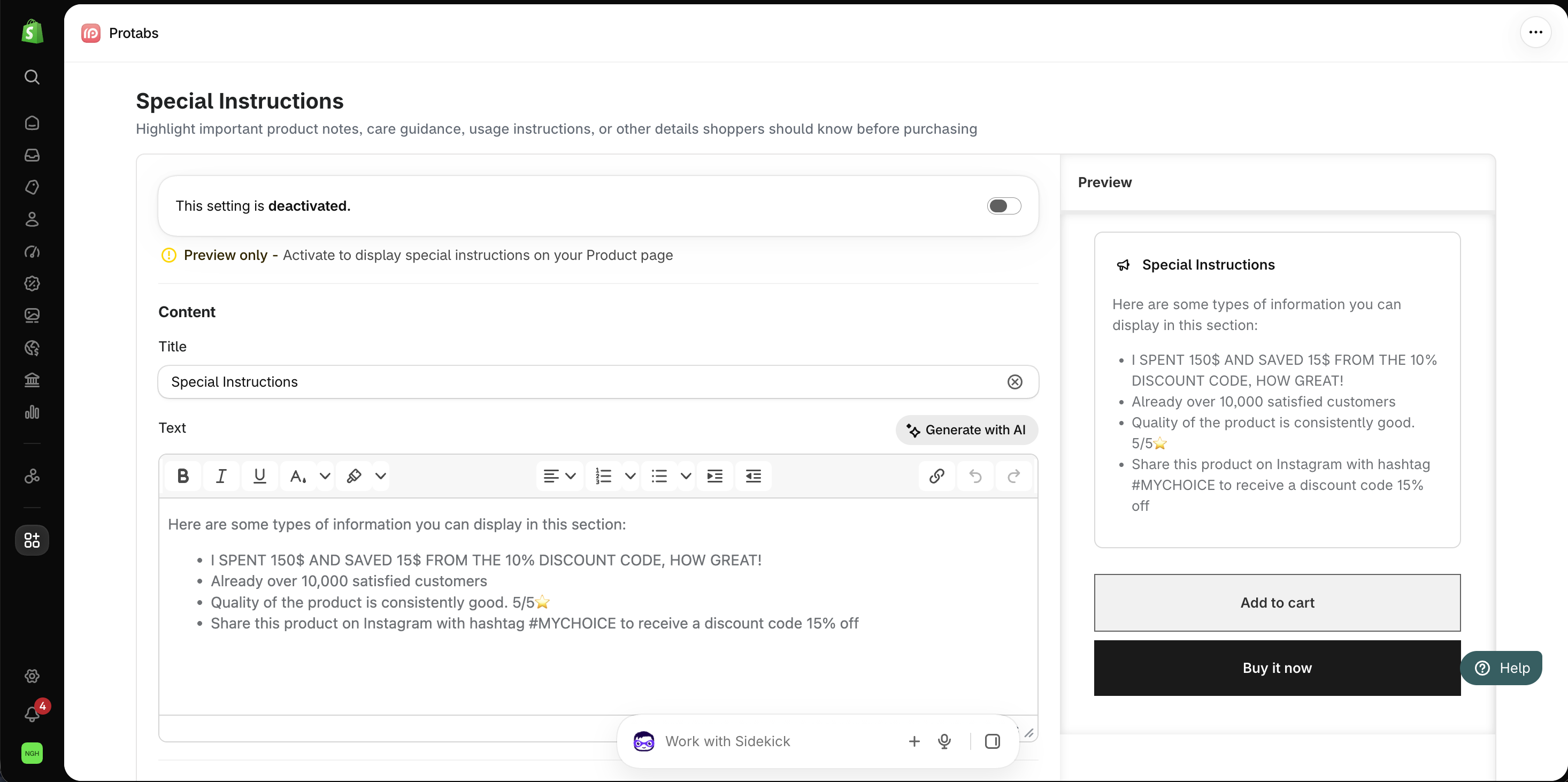
To improve your text with AI, click Generate with AI. AI rewrites your current text, keeps your bullets and links, and bolds the important information. Review the result before you save it.
Step 2: Customize the Appearance
In Appearance:
- Templates: choose Default or Spacious.
- Colors: set the Background color, Border color, and Text color. The percentage next to each color is its opacity.
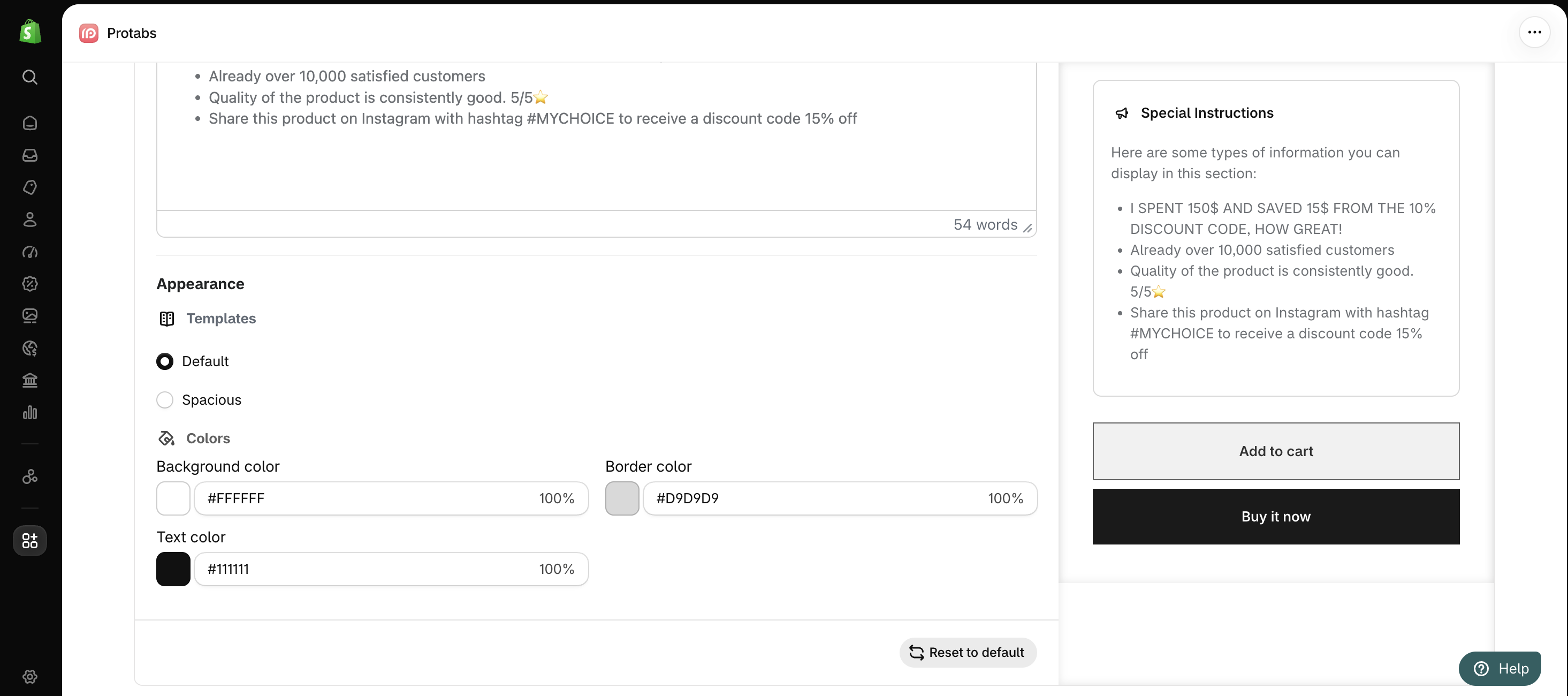
The Preview section shows how the section will look on your product page. To restore the default settings, click Reset to default.
Step 3: Activate and Save Special Instructions
- At the top of the Special Instructions page, turn on the toggle so it shows This setting is activated. While the toggle is off, the section does not appear on your storefront.
- Click Save.
- Visit a product page on your storefront and confirm that the special instructions display correctly.
Need help?
If you have any questions or need assistance setting up Special Instructions, feel free to contact our support team at [email protected].