Set up product tabs and accordions
Product descriptions can sometimes become lengthy, making it difficult for customers to quickly find the information they need. Product Tabs organize product information into separate tabs or accordion sections, creating a cleaner and easier-to-navigate Product Page.
This feature allows merchants to structure product descriptions into multiple sections, such as Description, Specification, Overview, or any other sections that are relevant to their products.
1. Activate the app embed
- In your Shopify admin, open Protabs → Product Tabs.
- Click Activate app embed.
- In the theme editor, enable the Protabs app embed.
- Click Save, then return to Protabs.
- Click Verify status to check the activation status.
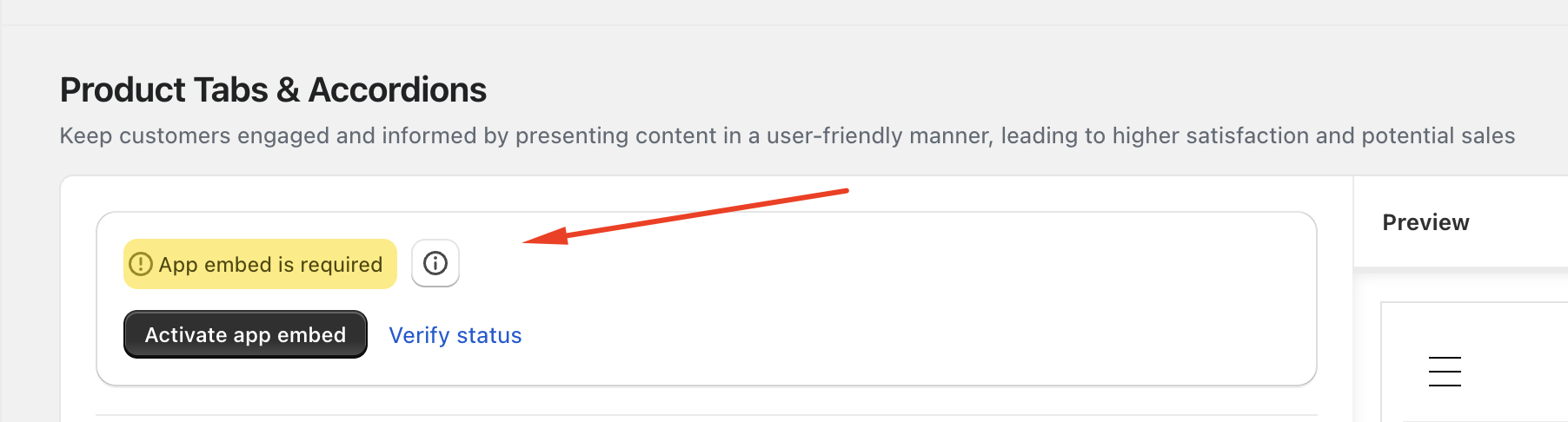
The app embed must be enabled on the theme you are using for tabs or accordions to appear on your storefront.
2. Configure the settings
In the Settings section, configure the following options.
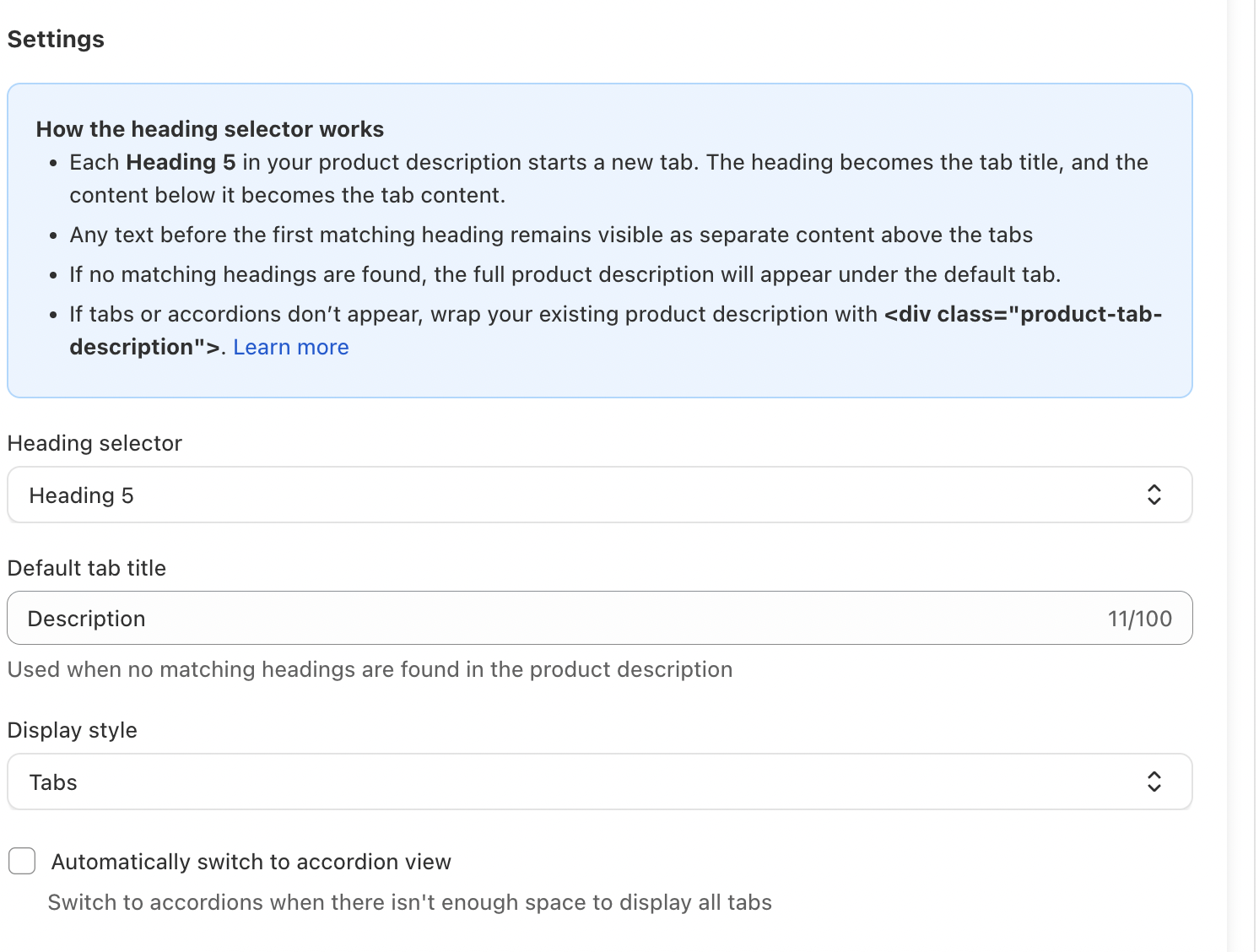
Heading selector
Choose the heading level Protabs should use to split your product description into sections.
For example, if you select Heading 5:
- Each Heading 5 starts a new tab or accordion section.
- The heading becomes the section title.
- The content below it belongs to that section until the next matching heading.
- Text before the first matching heading remains visible above the tabs.
- If there are no matching headings, the full description appears under the default tab.
Default tab title
Enter the title to use when no matching headings are found in the product description, such as Description.
Display style
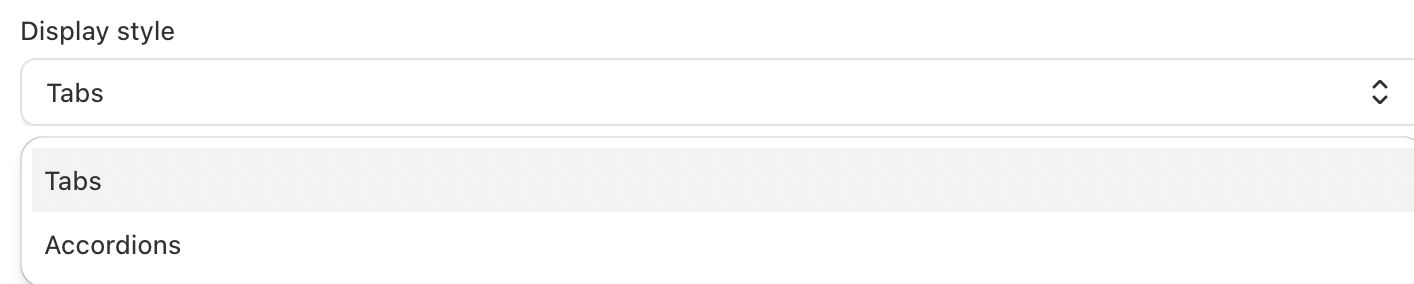
Choose whether to display your content as Tabs or Accordions.
If you use tabs, you can enable Automatically switch to accordion view to allow Protabs to switch the layout automatically.
3. Format your product description
- In your Shopify admin, go to Products and open a product.
- In Description, add section titles such as Product details, Materials, and Care instructions.
- Select each title and apply the heading level you selected in Protabs using the formatting menu.
- Add the relevant content below each heading.
- Click Save.
For example, with Heading 5 selected, your description HTML could look like this:
<p>A comfortable everyday T-shirt.</p>

<h5>Product details</h5>
<p>Regular fit with short sleeves.</p>

<h5>Materials</h5>
<p>100% cotton.</p>

<h5>Care instructions</h5>
<p>Machine wash cold.</p>
This creates three sections: Product details, Materials, and Care instructions. The introductory paragraph remains above the tabs.
4. Review the result
Review the Preview panel in Protabs, then open the product page on your storefront to check the section titles, content, and display style.
If tabs or accordions do not appear, follow Product tabs or accordions are not showing.
Need help?
Contact us at [email protected] and include your store URL and the affected product page.